WordPress crypto payments
How to accept crypto payments on WordPress and WooCommerce without a ready-made plugin: the two pieces of code, where they go and what usually breaks.
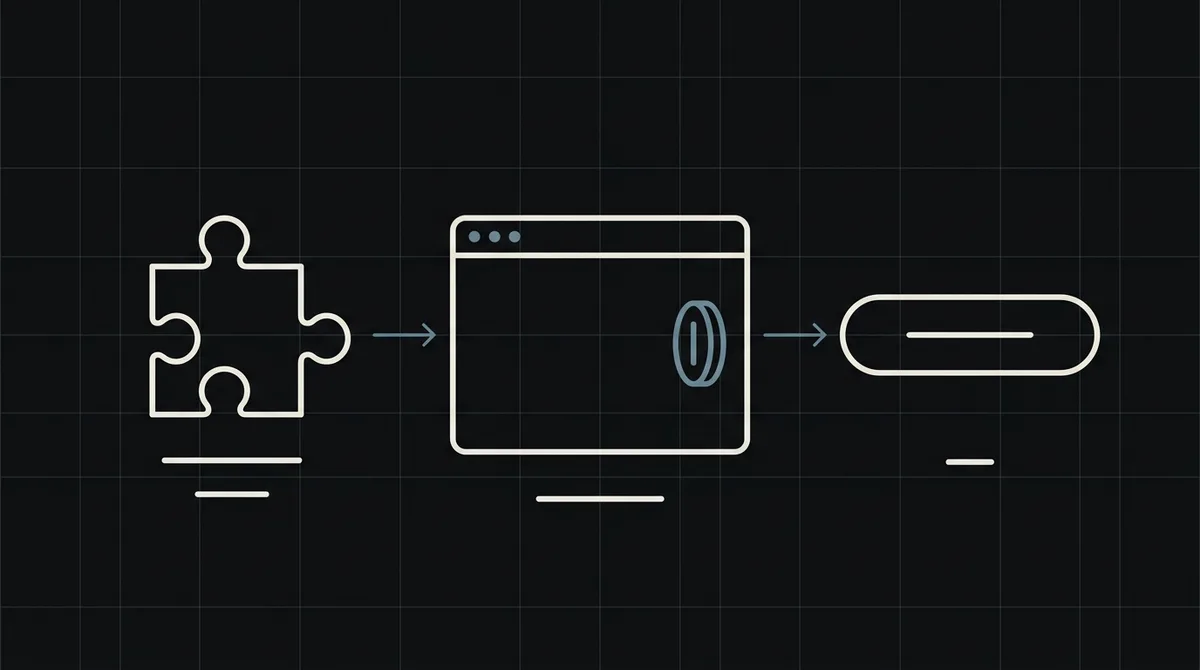
WordPress has no built-in way to take crypto, and Qvard does not have a ready-made WordPress plugin yet. What it does have is a simple API, and WordPress is perfectly able to talk to one. This guide shows how to connect a WooCommerce store to Qvard with two small pieces of code, and what to check when it does not work.
Plugin or custom code: the honest choice
A plugin is the first thing people look for on WordPress, and it is a reasonable instinct: install, paste a key, done. Here is the situation today.
- Qvard has no WordPress or WooCommerce plugin yet. The integration is through the API. We would rather say that than send you hunting for a plugin that does not exist.
- Third-party plugins for other crypto gateways will not connect to Qvard. Each plugin speaks its own gateway's API.
- The custom route is small. One request creates a payment and one endpoint receives the result. A WordPress developer can write it in an hour or two, and you control exactly what happens to the order.
If you want a no-code setup, Qvard is not there yet. If you have a developer, or can pay for an hour of one, read on.
How the integration works
The flow for a WooCommerce order:
- At checkout the customer chooses "Pay with crypto". Your code creates a payment through the Qvard API, using the WooCommerce order number as the payment
id. - Qvard returns a
redirectUrl. You send the customer to that hosted page, where they pick an asset and a network and pay from their own wallet. - When the payment is complete, Qvard calls an endpoint on your site.
- The endpoint finds the order by the
idand marks it paid, which lets WooCommerce send its usual emails and move the order to processing.
Your WordPress site never generates addresses or watches the blockchain. The two pieces you write are the call that creates the payment and the endpoint that receives the result.
Piece 1: create the payment
In WordPress, use wp_remote_post to call https://api.qvard.com/api/v1/payment with your API key in the Authorization: Bearer header and a JSON body: id (your order number, as a string) and price (the amount in US dollars). A successful call returns HTTP 201 with a redirectUrl.
The example below does exactly that for a WooCommerce order. Keep the key in wp-config.php as a constant, not in the theme and not in the database options where plugins and exports can leak it.
Two WooCommerce details matter:
- Currency. The price is sent in US dollars. If your shop uses another currency, convert the order total to dollars before the call, or the customer will be asked for the wrong amount.
- Retries. Sending the same
idfor the same payment method returns the existing payment, so a double click or a retried request does not create a second one.
Hook this into a custom payment method, or into the checkout step that handles the "Pay with crypto" choice, and redirect the customer to the returned URL.
<?php
// Create a Qvard payment for a WooCommerce order and return the page to send the customer to.
// QVARD_API_KEY is defined in wp-config.php, never in a theme or a public repository.
function qvard_create_payment( WC_Order $order ) {
    $response = wp_remote_post( 'https://api.qvard.com/api/v1/payment', array(
        'timeout' => 15,
        'headers' => array(
            'Authorization'    => 'Bearer ' . QVARD_API_KEY,
            'Content-Type' => 'application/json',
        ),
        'body'    => wp_json_encode( array(
            'id'    => (string) $order->get_id(),   // matched again in the webhook
            'price' => (float) $order->get_total(), // US dollars
        ) ),
    ) );

    if ( is_wp_error( $response ) || 201 !== wp_remote_retrieve_response_code( $response ) ) {
        return null;
    }

    $data = json_decode( wp_remote_retrieve_body( $response ), true );
    return isset( $data['redirectUrl'] ) ? $data['redirectUrl'] : null;
}Piece 2: receive the webhook
Register a REST route in WordPress and save its address in your Qvard project as the callback URL, for example https://your-site.com/wp-json/qvard/v1/webhook. When a payment completes, Qvard sends a POST with the id you gave it and the payment status, signed in the X-Qvard-Signature header.
Three rules for the endpoint:
- Verify the signature. Check
X-Qvard-Signature(HMAC-SHA256 with your secret key) with the SDK and reject anything that does not match. - Mark the order paid only on completed. A customer who is back on your site is not proof of payment, and a
partialstatus means they sent less than required. - Answer exactly HTTP 200. Qvard treats any other status as a failure and retries (five attempts over roughly six minutes), and it does not follow redirects. Because of the retries, the handler must be safe to run twice;
is_paid()in the example prevents a double completion.
More on the security side in how to secure crypto payment webhooks.
<?php
// Webhook endpoint: https://your-site.com/wp-json/qvard/v1/webhook
add_action( 'rest_api_init', function () {
    register_rest_route( 'qvard/v1', '/webhook', array(
        'methods'             => 'POST',
        'permission_callback' => '__return_true', // authenticated below by the X-Qvard-Signature header
        'callback'            => function ( WP_REST_Request $request ) {
            try {
                $payload = ( new Qvard\Qvard( QVARD_API_KEY ) )->webhooks->constructEvent( $request->get_body(), $request->get_header( 'x-qvard-signature' ), QVARD_API_KEY );
            } catch ( \Exception $e ) {
                return new WP_REST_Response( null, 401 );
            }
            $order   = wc_get_order( (int) ( $payload['id'] ?? 0 ) );

            if ( $order && 'completed' === ( $payload['status'] ?? '' ) && ! $order->is_paid() ) {
                $order->payment_complete();
            }

            return new WP_REST_Response( null, 200 ); // must be exactly 200
        },
    ) );
} );
What usually breaks on WordPress
Most failed integrations on WordPress come from the environment, not from the code:
- The webhook never arrives. A security plugin, a firewall or a "coming soon" page blocks unknown POST requests. Allow the route, and test it from outside your network.
- The route returns 404. Pretty permalinks are off, or the plugin file is not loaded. Open the route in a browser; a 401 or 405 means it exists, a 404 means it does not.
- Page caching. Make sure your cache plugin and CDN do not cache or rewrite
/wp-json/requests. - The order is paid twice. The handler is not idempotent. Check
is_paid()before completing. - The wrong amount. The shop currency is not US dollars and no conversion was done.
- Slow responses. Heavy plugins hooked to order completion can delay your answer. Return 200 quickly and do slow work afterwards.
After a customer pays, they return to your site on their own, since return URLs are not available yet. Give them an order page that shows the real status rather than a thank-you page that assumes success.
Test it before you go live
Open a demo invoice to see the payment page your customer will get. Then:
- Create a payment from a test order and check that you receive a
redirectUrl. - Pay a small real amount and confirm that the webhook arrives and the order becomes paid.
- Make the endpoint fail once, check that Qvard retries, and check that the order is not completed twice.
- Withdraw a small amount from your balance to your wallet.
There is no separate sandbox yet, so use small real amounts. The endpoints and fields are in the developer documentation, and the integration overview shows what else is connected today.
What it costs to run
There is no subscription fee. Per payment, the commission is individual to your project and, per the pricing page, starts at 1% and can go down to 0.1%; see pricing for the current terms. Withdrawals to your own wallet cost only the network fee. Withdrawing to a bank account in fiat is not available.
The one cost to plan for is development time: a small amount once, and a little maintenance when WordPress or WooCommerce changes something in the way payment methods are registered.
FAQ
Is there a Qvard plugin for WordPress or WooCommerce?
Not yet. Today the integration is through the API: one request creates a payment and one webhook receives the result. A WordPress developer can add both to a store in an hour or two.
Can I use a crypto plugin made for another gateway?
No. Each plugin talks to its own gateway and cannot connect to Qvard. You need custom code that calls the Qvard API.
My shop is not priced in US dollars. What do I do?
The price is sent to Qvard in US dollars, so convert the order total before creating the payment. The customer then pays the equivalent in the asset they choose, at a rate fixed for one hour.
The webhook does not reach my site. Why?
Usually a security plugin, firewall or maintenance page is blocking the request, or the REST route is not registered. Check that the route answers from outside your network, and that it returns exactly HTTP 200 to a valid request.